
Oracle OCI - The Naked Truth
Blog Post 1 - OCI Client Set Up and Bulk Load Commands

Introduction
I often think when developing software that the maximum learning happens when there are challenges or misunderstanding with how something works. I have at some points probably made my fair share of mistakes but I always try to learn from them so the same mistake repeated is rare. Here is my account of a recent project which will be useful as a reference for object storage, OCI client and associated coding including using parallel processing but also of interest for the insights of mistakes made and lessons learned – without them being glossed over, the naked truth!
Initial Steps/Configuration
I was tasked with loading files to object storage and then associating with data in our database. The accepted way to achieve this was via the OCI client being installed onto the server where the files resided. Then bulk load commands could be used to load the files from the command line into the OCI staging area. I needed to work with the service desk to get the OCI client installed. The first issue was due to restrictions on the server where the files resided prevented the OCI client from being installed. A copy of the server was generated and then the OCI client was installed.
Once the OCI client software had been installed I then set up the client on the server. I found some instructions that instructed of setting up a new user, group and policy but I reasoned that I could use my own user so I set up the ssh keys against my user and copied the private key to configure the OCI client on the server.
Some initial problems that were encountered with the OCI client were:
1/ OCI was installed but not recognised when running commands via the command line. E.g. oci -i
The fix was to run:
set PATH=%PATH%;C:\OCI\bin
to add c:/OCI/bin to the path environment variable. Note: I could run this command myself (as a non-admin user) but I found I had to rerun it for subsequent log ons in order to use the OCI client.
2/ After the above was resolved the next error was "No Python" at... saying that Python wasn’t installed.
Once the OCI and Python were installed I could run oci commands successfully. Yes!
Bulk Upload Commands
I could then start to run the bulk commands. I initially started with this command from Lee Dixon's excellent blog: Bulk Uploading 25M Files to OCI Object Storage
oci os object bulk-upload -bn "ASCEND_INVOICES" --src-dir "H:\Ascend\M10" --overwrite --parallel-upload-count 500 --object-prefix "H/Ascend/M12/" --exclude *.Log > H_M10.json
In my case the folder structures looked like this:

The folders shown represent years, this was followed by month and days folders as follows:

All of the documents comprising of pdfs, docx and msg files were in the day folders (e.g. '19' in the above screenshot).
My initial command to upload files from the 17 folder was:
oci os object bulk-upload -bn "ra_micro_non_prod" --src-dir "X:\RA\ar\17" --overwrite --parallel-upload-count 500 > ar_17.json
As (I reasoned) that I don’t need to change any paths I omitted the object-prefix parameter completely.
Everything Seemed Rosie
I then checked my resulting log files by navigating to them and checking the counts by searching a string and obtaining the count. (Lee Dixon has a better way of doing this from the command line but I went my own way). I then checked the ‘Approximate’ count on the server to ensure that the expected files were uploaded. Satisfied that the logs seemed to indicate everything had gone across and the OCI server count being approximate I assumed that all the files were loaded. Cue a rather optimistic and criminally low estimate of the remaining work when asked how the project was going by our CTO…
At this point I was feeling buoyant and surprised at how simple it all seemed… But at the time of giving my update I had lost sight certain key facts:
1/ I had done no load testing so didn’t actually know if my current solution would work successfully.
2/ Although there was no indication in the logs not all the files had been loaded (as transpired later).
Silence Isn't Always Golden
The issue I later uncovered was due to an assumption about the path parameter in the bulk load command. As the source directory was e.g. --src-dir "X:\RA\ar\17" then this uploaded to the OCI bucket as follows - starting at that folder point:
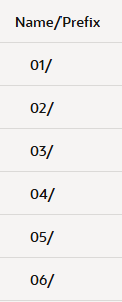
Note that as the top level structures weren't uploaded then all of the files from originating year and month folders e.g. 18/01, 19/01, 20/01 etc. were being loaded into the 01 folder... this was in effect silently removing all files with duplicate names. Looking at the bulk load command again:
oci os object bulk-upload -bn "ra_micro_non_prod" --src-dir "X:\RA\ar\17" --overwrite --parallel-upload-count 500 > ar_17.json
The overwrite command means that any duplicates are not logged, only overwritten. On realising this the command became:
oci os object bulk-upload -bn "ra_micro" --src-dir "X:\RA\ar\17" --overwrite --parallel-upload-count 500 --object-prefix "ar/17/"> ar_17.json
Note the object prefix parameter which is essential in this scenario to ensure that duplicates are not filtered out, especially when also using the overwrite command. With the above command the file paths were correctly represented in the OCI bucket (see below) and the file counts matched the source folders.
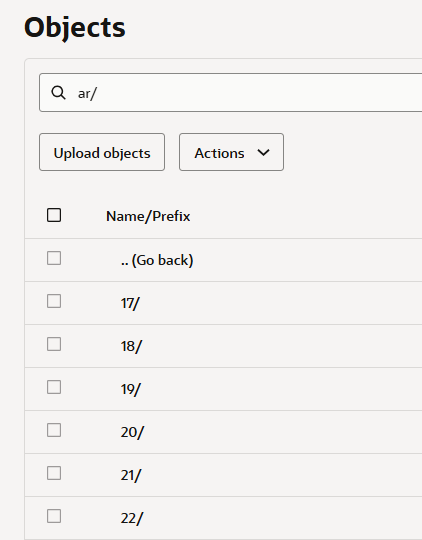
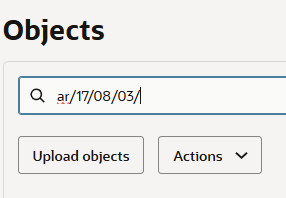
I used a query similar to this to check the files residing in the staging bucket:
SELECT * FROM DBMS_CLOUD.LIST_OBJECTS( credential_name => 'MY_CRED_NAME', location_uri => 'https://mybucketuri') WHERE BYTES > 0 ORDER BY object_name;
This was checked against counts of files on the server (which I viewed by inspecting the folder properties on the windows server). The counts lined up perfectly now that the files were going into the correct folders.
Please join me, for more posts in this series as they become available.