Oracle APEX Working Copy Restore
If you're using APEX working copies then you may have encountered your working copy disappearing. It can happen due to someone reinstalling the main application, due to a database refresh, someone accidentally deleting the wrong working copy or a myriad of other reasons. It can be very worrying if you have spent a long time working on your copy and it's apparently lost.
It is therefore sensible to routinely export your working copy application so it can be refreshed from the export... BUT if your working copy has gone and you have not exported then, fear not, you may be able to restore from a backup.
How to Restore Your Working Copy From a Backup
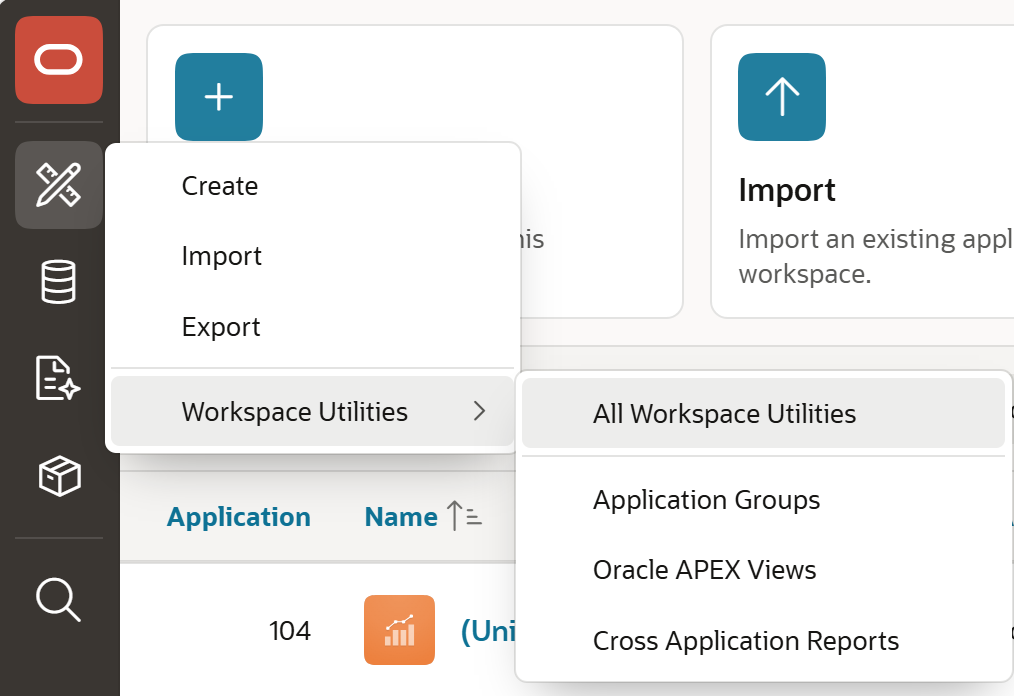
Go to 'Workspace Utilities' > 'All Workspace Utilities'
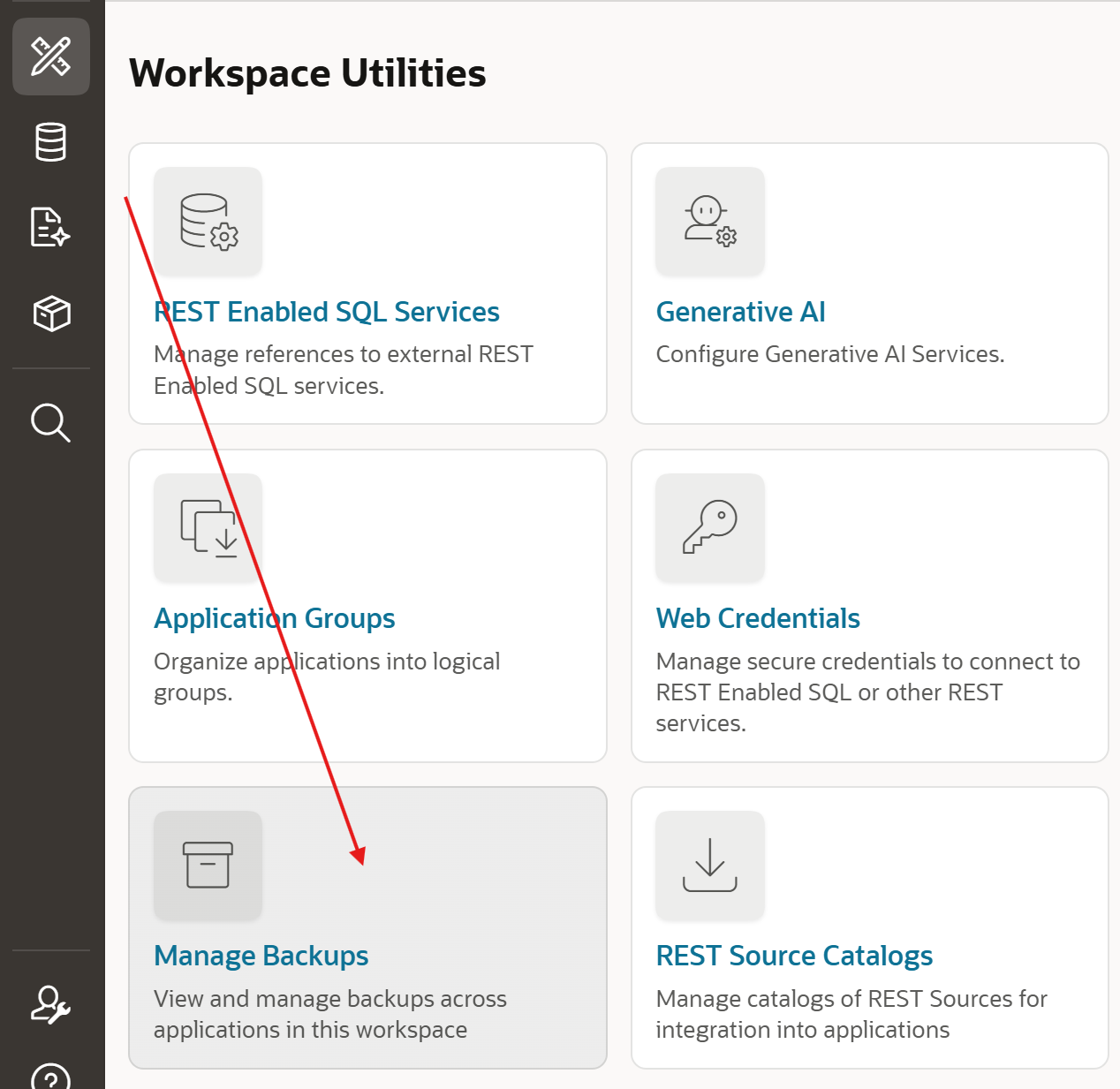
Go to 'Manage Backups'
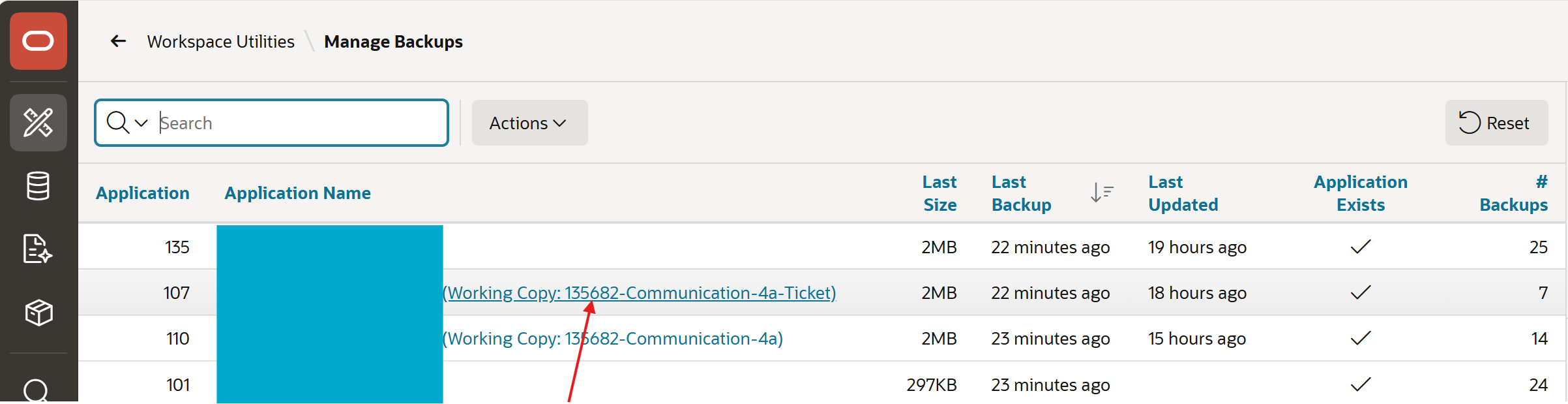
Click the working copy you want to restore
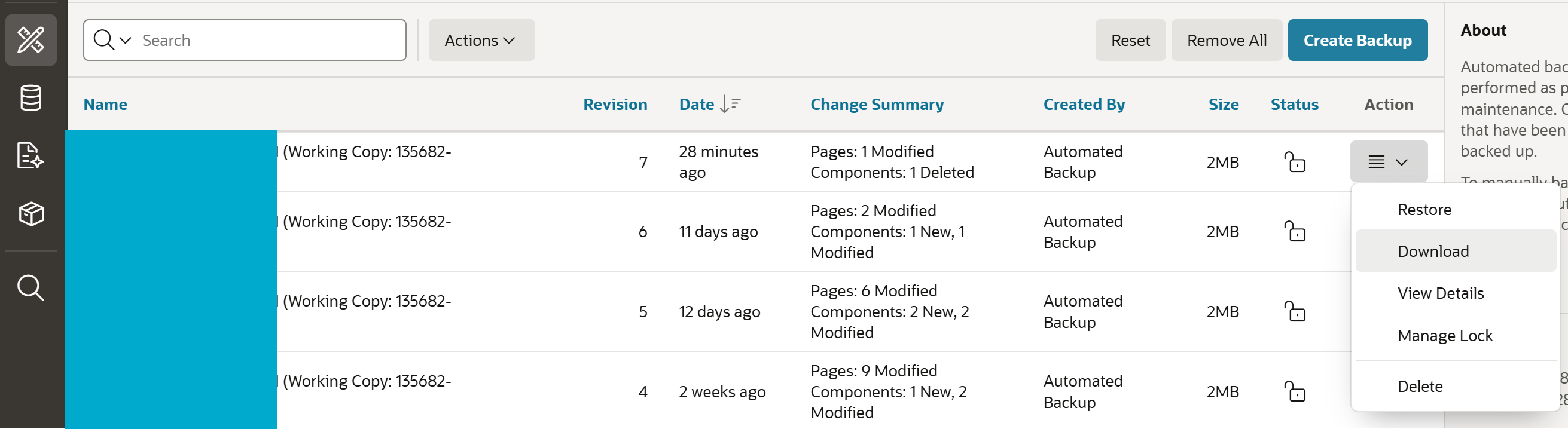
For the working copy you want to restore (likely the latest) click the 'Action' drop down and select 'Download'. Note: you cannot 'Restore' the working copy directly as it no longer exists.
Save the zip file then open the file location and extract the file
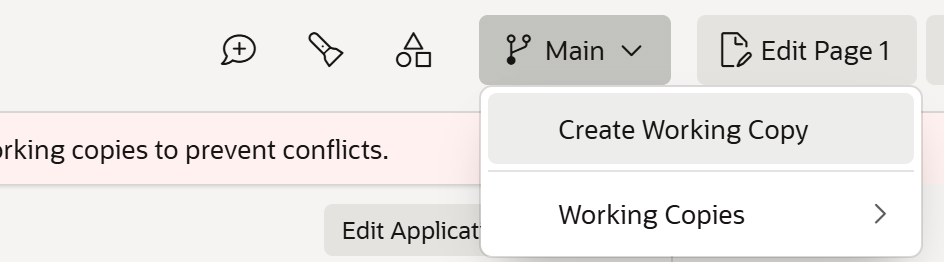
Go the main application and click 'Create Working Copy'
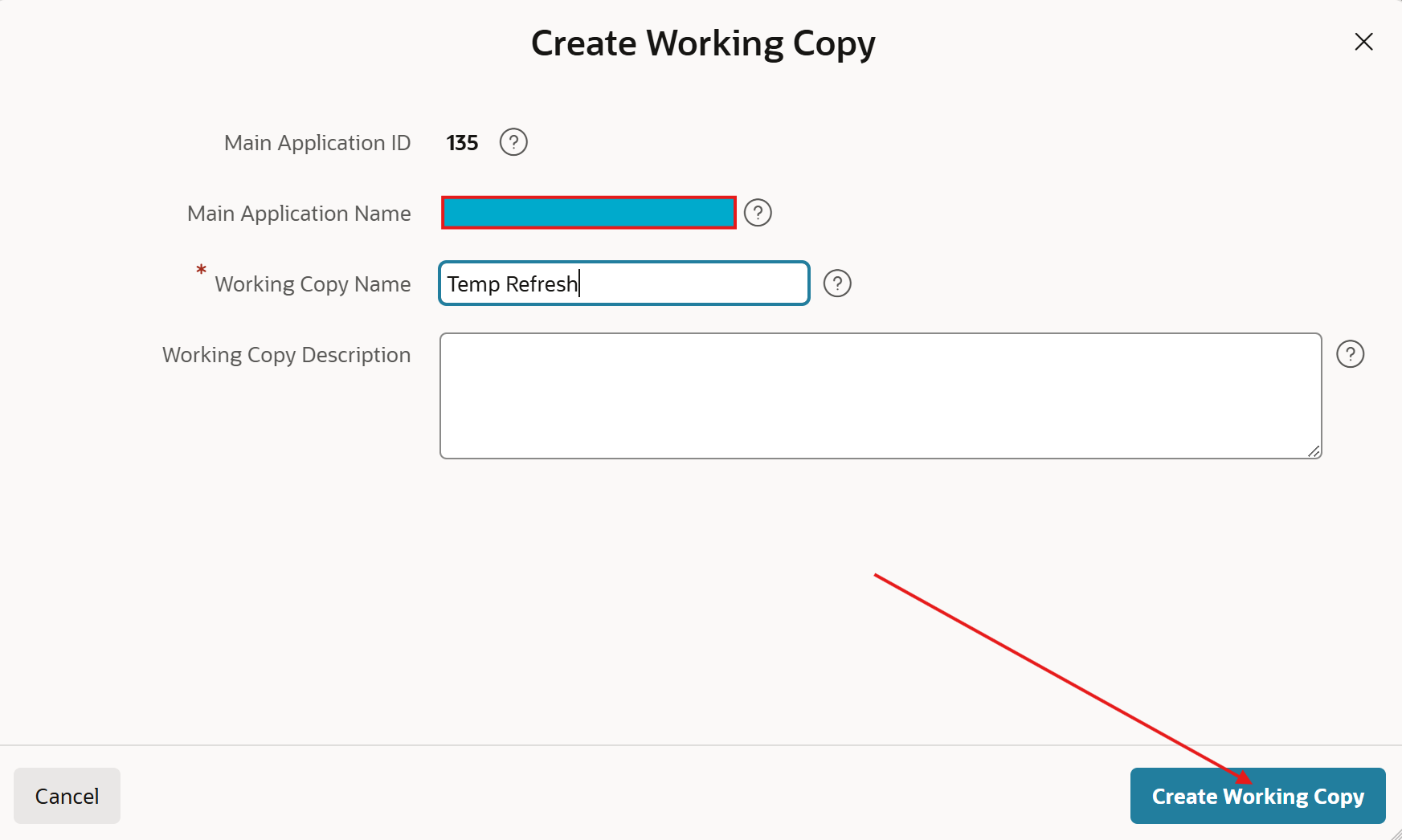
Give the working copy any name e.g. WC1 - it will be replaced when we restore the working copy. Click 'Create Working Copy'
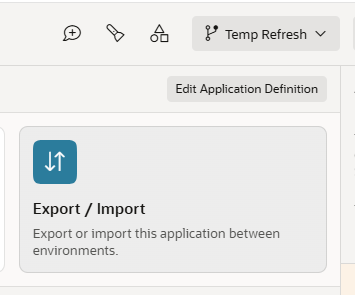
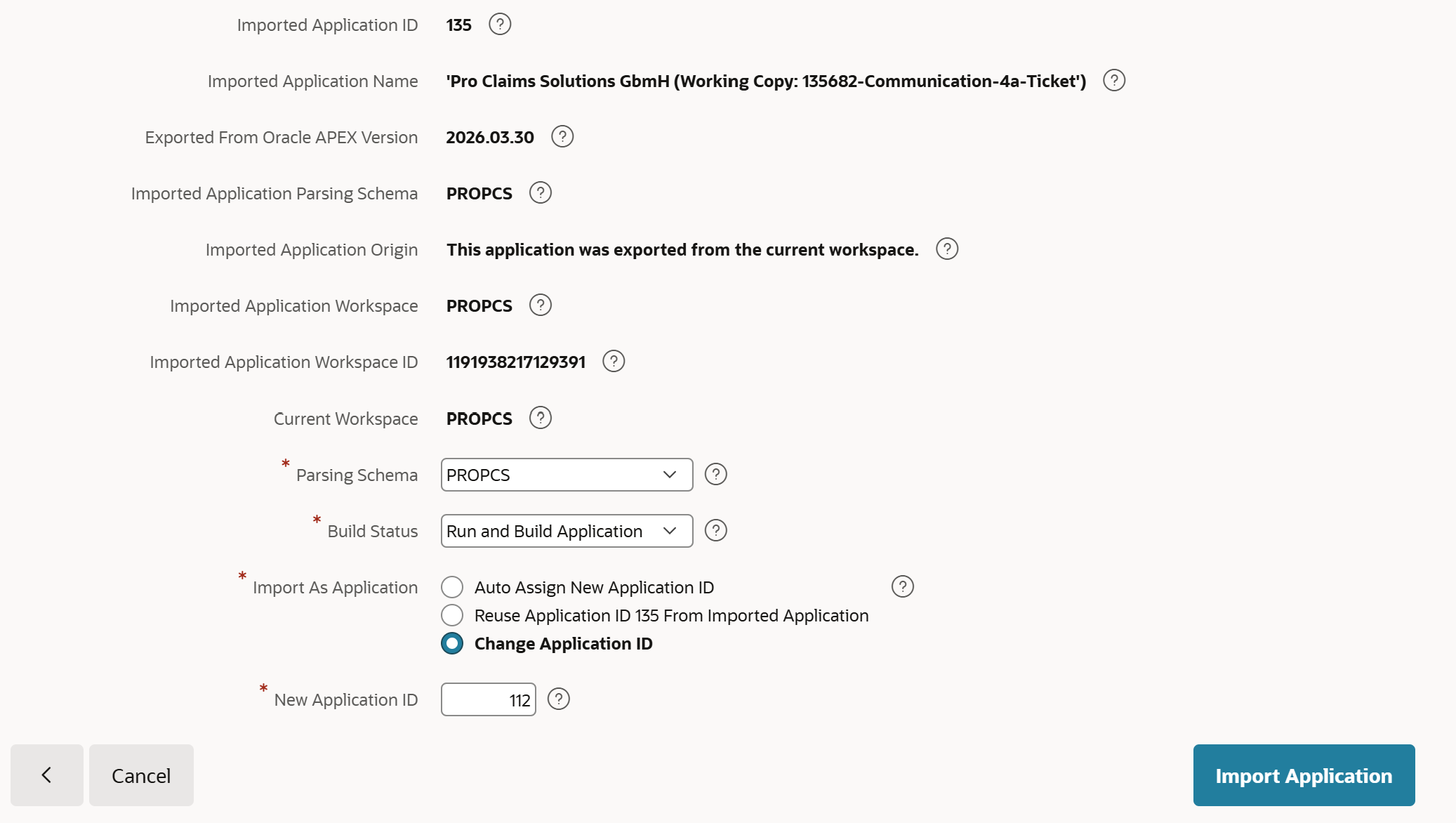
You will now be in your new working copy. Make a note of the application id - (112 in this example)

In your new working copy select 'Export / Import'
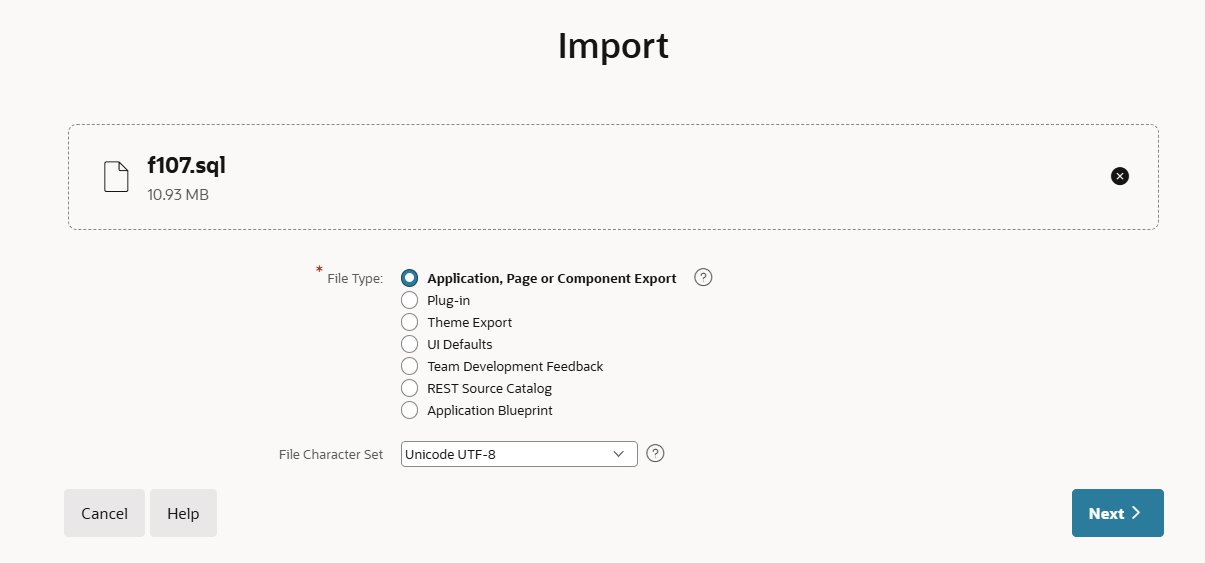
On the following screen select 'Import' and then drag and drop or select the application being restored. Click 'Next'
For 'Import As Application' select 'Change Application ID' and set the 'New Application ID' to match the working copy application id. Click 'Import Application'.
Your working copy should now have been successfully restored from the backup